Know your numbers
Switch in a day. Undo if you need to.
Export from your old software, drop the files in, check what comes over, and bring it in. Your clients don’t get a single email while you do it. Don’t like how it came in? Undo the import and try again.

In and out
Settings → Bring your data over, and Settings → Download all my data. The owner and the office can bring data in; only the owner can take it all out.
- usepaperforeman.com/settings/import
You
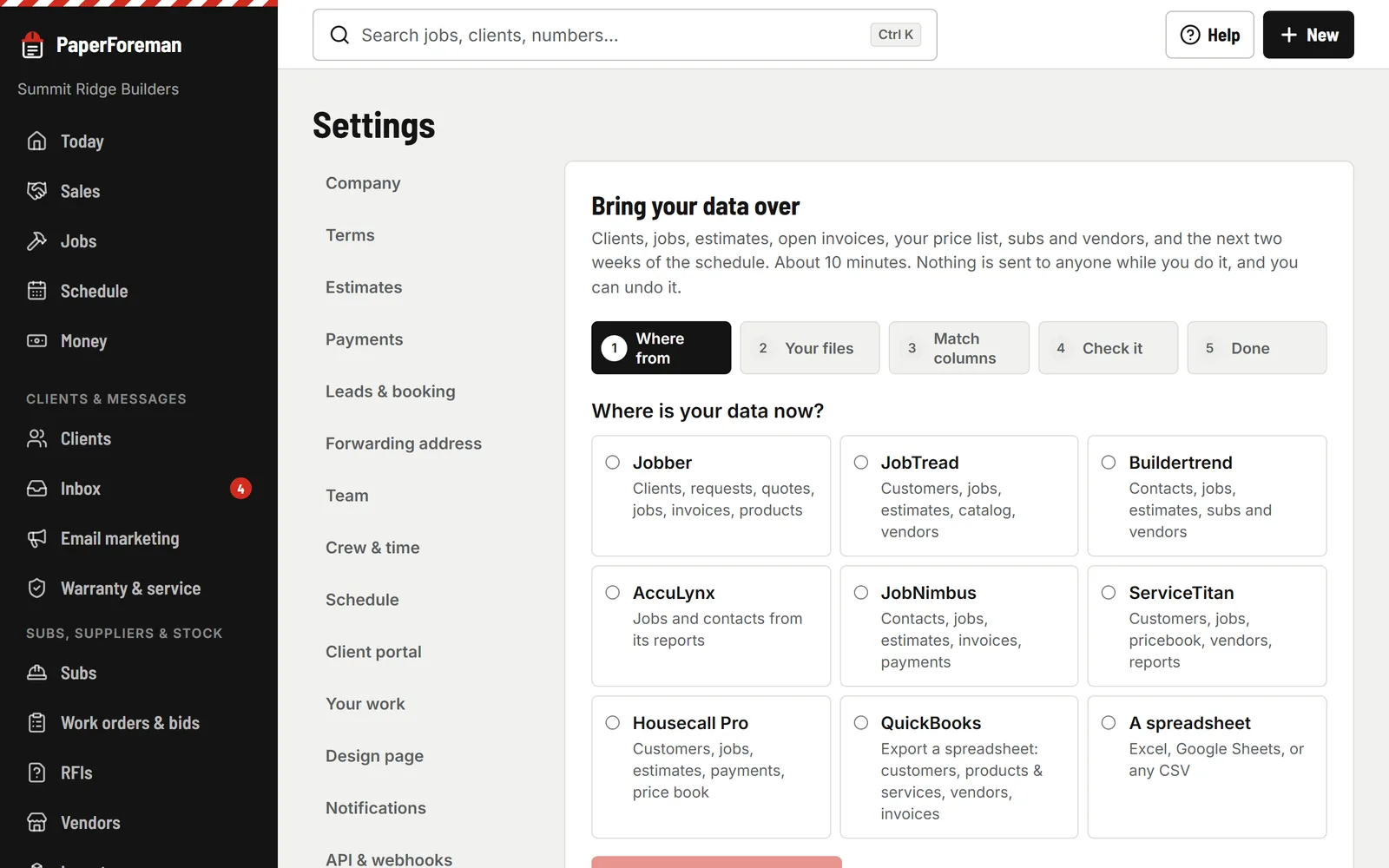
Pick where it is now
Jobber, JobTread, Buildertrend, AccuLynx, JobNimbus, Leap, ServiceTitan, Housecall Pro, QuickBooks, or a spreadsheet. Each one comes with the export clicks for that product, from its own help pages. Drop the files in; it works out what each one is and which column is the name, the address, the amount, then shows you how many of each, who’s already here (matched, not copied) and what stays out, before anything is saved.
- usepaperforeman.com/settings/export
You
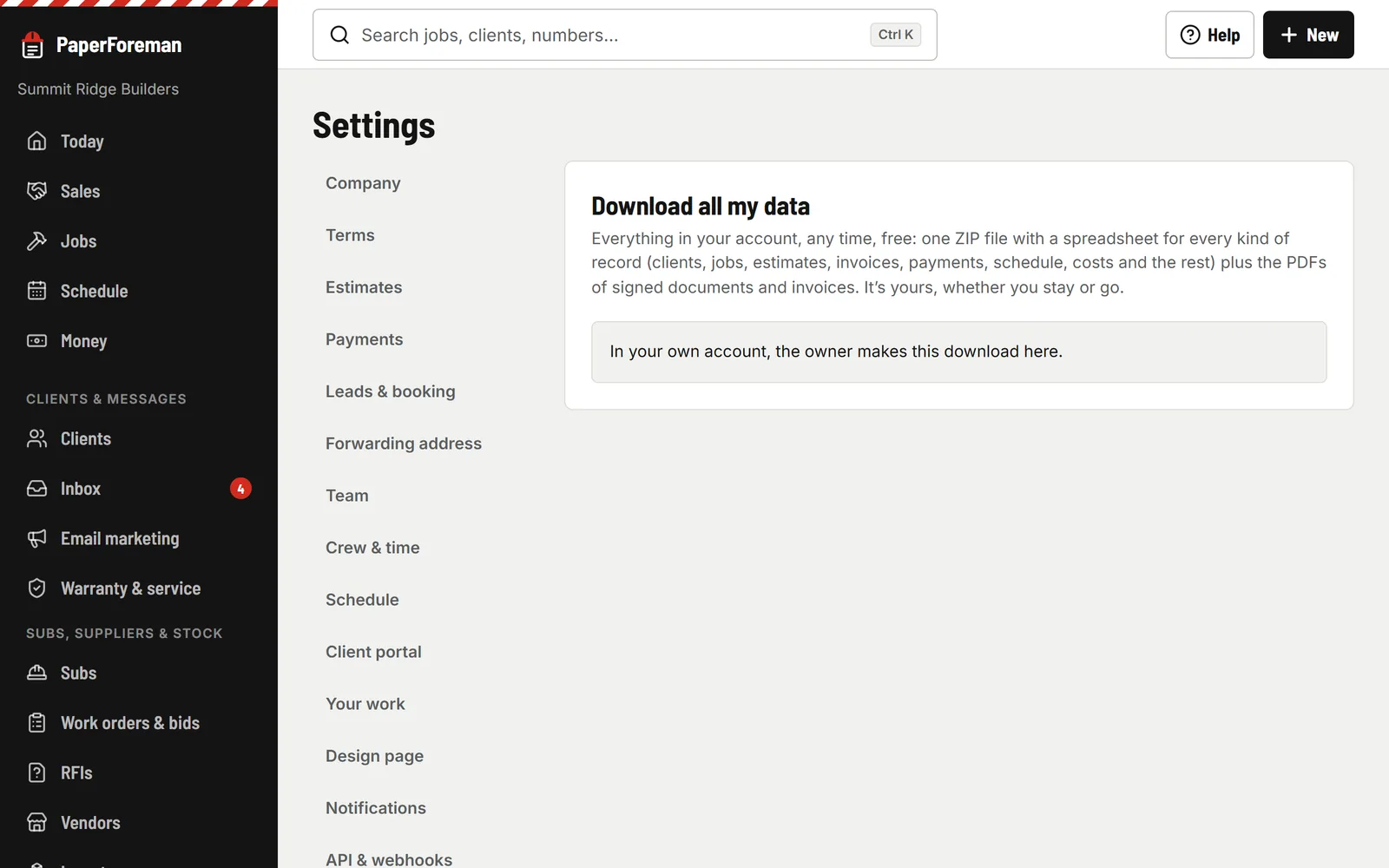
And the way back out
Settings → Download all my data: every list as a spreadsheet and every signed PDF in one ZIP, emailed to the owner as a private link. Any time, even after you cancel.


What it handles
Open invoices come over with what’s been paid. Paid and voided ones stay behind, with the payment history on each client for reference. Reminders on imported invoices only start if you say so.
- Jobber
- JobTread
- Buildertrend
- AccuLynx
- JobNimbus
- Leap
- ServiceTitan
- Housecall Pro
- QuickBooks
- Spreadsheets
Export from your old software
PaperForeman shows the clicks for each product, taken from its own help pages.
Drop the files in
CSV or Excel, as many as you have. It works out what’s in each one and matches the columns.
Check what comes in
How many of each, what’s already here, and what stays out, in plain words, before anything is saved.
Bring it in. Undo if you need to.
One tap. Nothing is sent to your clients. “Undo this import” takes out exactly what it made.
What comes over
- Clients and addresses
- Leads
- Jobs
- Estimates with their lines
- Open invoices and what was paid
- Payment history
- Your price list
- Suppliers, vendors and subs
- The next two weeks of the schedule
Questions
Can I bring my data from my old software?
Yes. Settings → Bring your data over: Jobber, JobTread, Buildertrend, AccuLynx, JobNimbus, Leap, ServiceTitan, Housecall Pro, QuickBooks or a spreadsheet. It shows the export clicks for each one; you drop in the CSV or Excel files, check what comes in, and bring it in. Nothing is sent to your clients, and “Undo this import” takes out exactly what it made.
Can I get all my data out?
Any time. Settings → Download all my data makes one ZIP with a spreadsheet of every list and every signed PDF, and emails the owner a private link to it. It works on a canceled plan too.
Bring it over tonight. Run tomorrow.
Try it free for 14 days. Set up takes about ten minutes, from your phone.
Try it free. No card until you send your first document. Plans from $149/month after the trial. Cancel anytime from Billing.